The Complete Tiktok Live Studio Guide: Hardware Specs, Console Streaming, and Troubleshooting
 By Robert Thorne
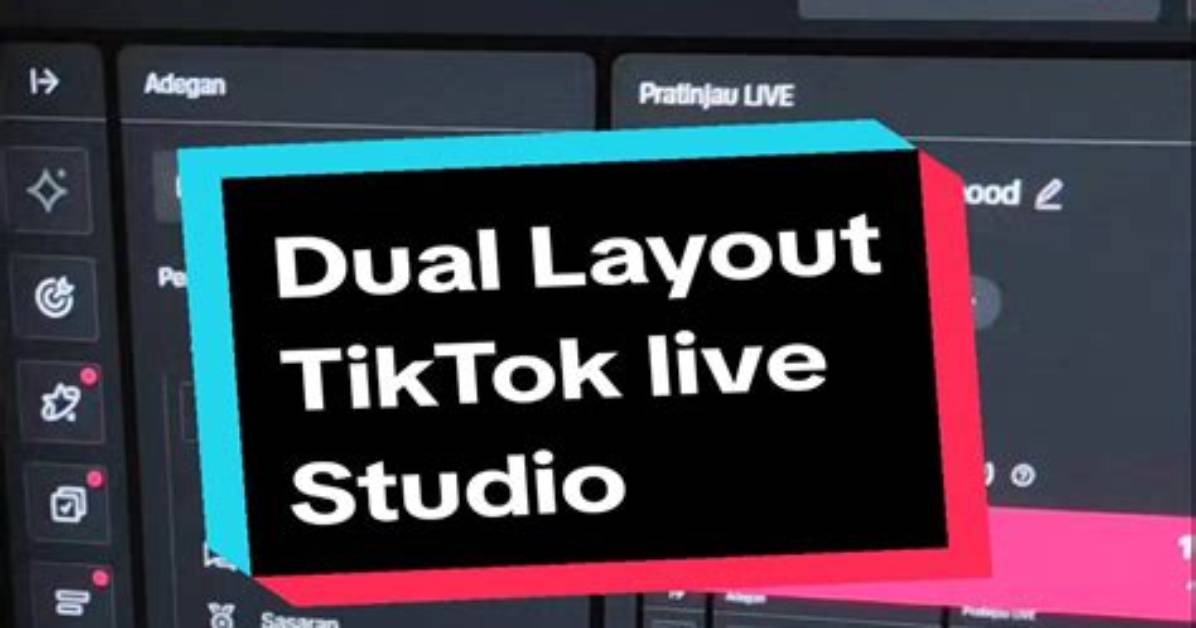
The most pervasive issue reported across streaming forums is the dreaded black screen bug. A creator launches a high-end game or adds a capture card source, but the preview canvas renders pitch black while audio plays normally in the background. This issue almost always stems from multi-GPU switching conflicts, particularly on gaming laptops and multi-monitor desktop builds.
Windows regularly runs TikTok LIVE Studio on an integrated graphics chip (such as Intel UHD or AMD Radeon Graphics) while the game runs on a discrete graphics card (such as an Nvidia RTX GPU). Because the integrated processor cannot directly access the frame buffer of the discrete card, the screen capture fails entirely. Resolving this requires opening Windows Graphics Settings, browsing for the TikTok LIVE Studio executable (`TikTok LIVE Studio.exe`), and manually setting graphics preference to High Performance.
Missing stream keys represent another operational roadblock. In 2026, TikTok continues to restrict manual RTMP keys (Server URL and Stream Key pairs) from standard account dashboards, reserving them for managed creators, partnered talent agencies, or accounts using TikTok Shop affiliate platforms. If you do not have stream key credentials visible in your desktop creator portal, running third-party software like Streamlabs or native OBS requires using the Virtual Camera workaround described above, or applying through a verified creator network that holds enterprise API provisioning rights.
Robert Thorne covers electric vehicle innovations, autonomous driving systems, global mobility trends, and automotive engineering developments.
