Modern iOS Screen Recording Features: Evolution from Basic Video to Dynamic Island Integration
 By Maya Lin-Takahashi
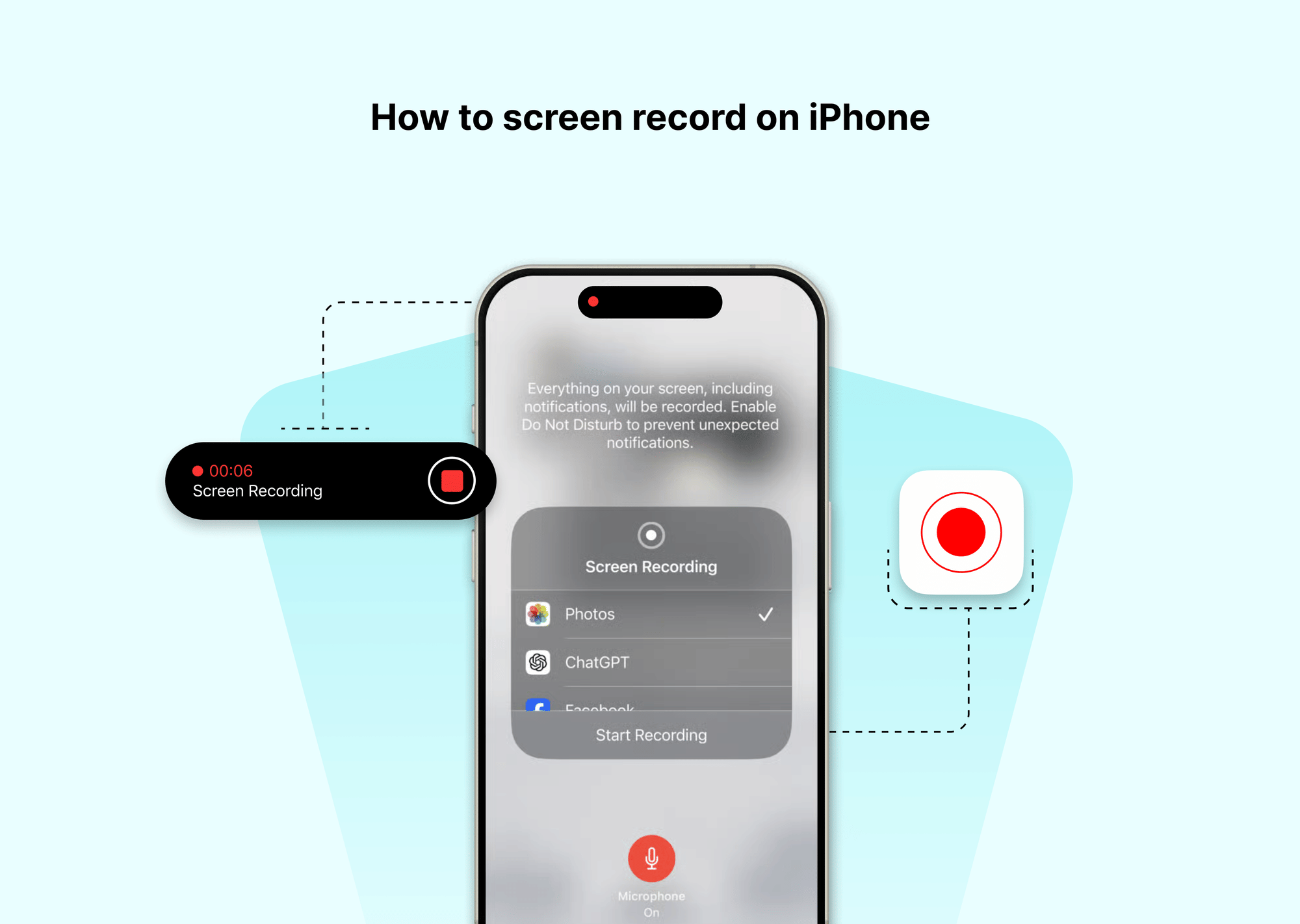
Apple does not place the screen capture utility on your Home Screen as a standalone app. Instead, it lives inside the Control Center overlay. If you have never added the toggle, you will not find it during a quick search.
To set up the feature:
- Open Settings on your iPhone.
- Scroll down and tap Control Center.
- Check the "Included Controls" list. If you do not see Screen Recording, scroll down to the "More Controls" group.
- Tap the green + (Add) button beside Screen Recording.
- Reorder the tile by dragging the three horizontal bars on the right, placing it near the bottom so your thumb reaches it effortlessly.
Once configured, accessing the recorder takes a single motion. On any modern iPhone with Face ID or Dynamic Island, swipe down from the top-right corner of your screen. If you use an older device with a physical Home button, swipe up from the bottom edge. The screen record toggle button appears as a solid dot enclosed within an outer circle.
| iOS Generation | Visual Status Interface | Audio Pipeline Capabilities |
|---|---|---|
| iOS 11, 13 | Red banner across status bar; visible recording artifact | Basic system audio; frequent sync drift with external mic |
| iOS 14, 16 | Red bubble clock indicator; requires full swipe down to stop | App-specific stream muting; screen broadcast permissions added |
| Modern iOS (Current) | Dynamic Island indicator; direct tap-to-stop shortcut | High-resolution video export, pristine internal audio isolation |
Maya is a hardware enthusiast who tests and reviews smart home devices, smartphones, wearables, and audio gear. She focuses on practical consumer value and build quality.
