How to Get a Touch Bar on Windows: Complete Setup Guide for Macbooks and Desktops
 By Sophia Al-Mansoor
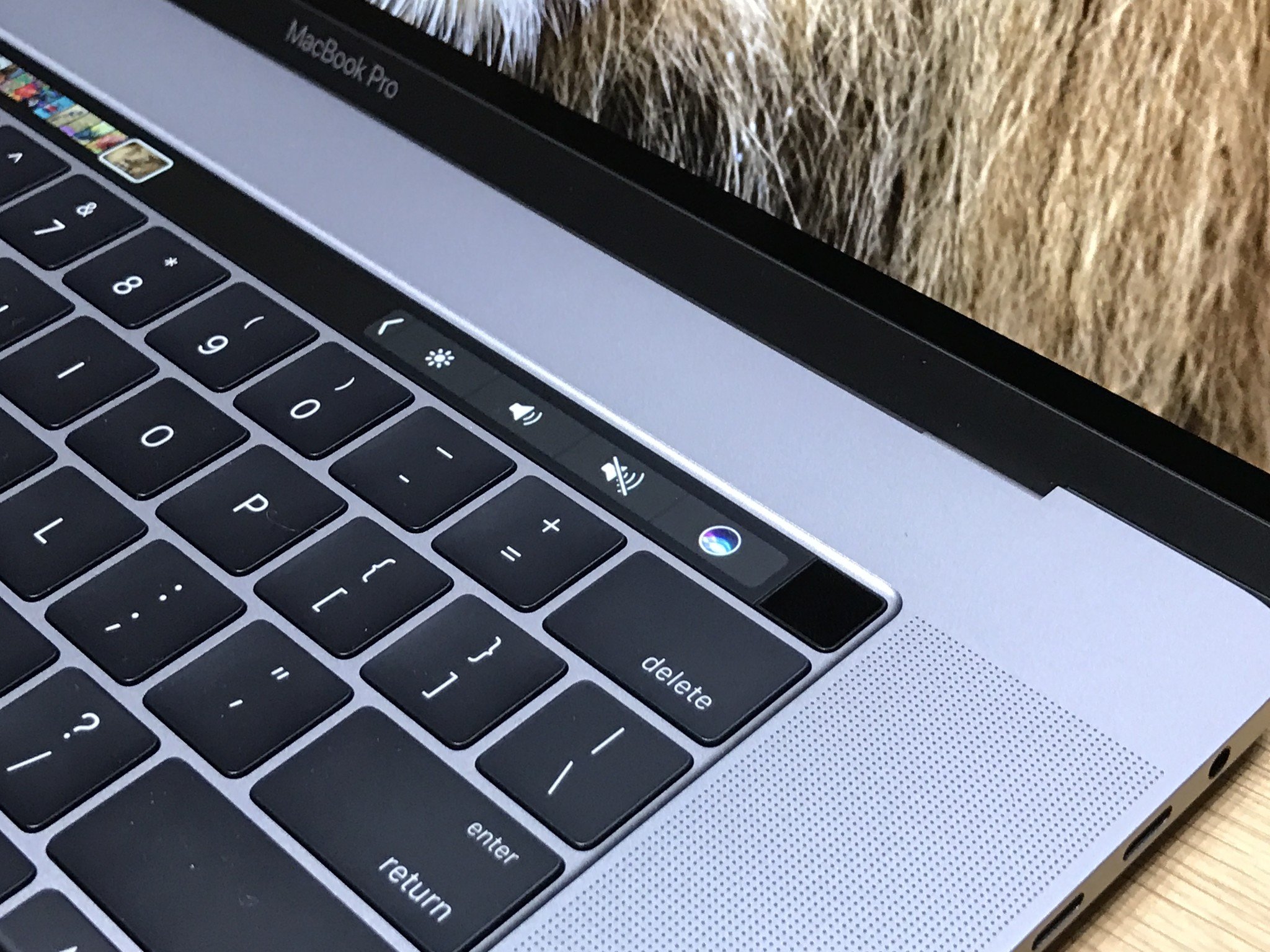
Building a custom touch strip requires addressing three major functional limitations.
First, Windows 11 display scaling struggles with non-standard resolutions. An 8.8-inch screen running 1920×480 presents a microscopic physical pixel pitch. Leaving scaling at 100% renders interface targets too small to tap accurately. Setting system scaling between 150% and 175% expands touch targets to finger-friendly dimensions, but poorly coded legacy Windows utilities may display blurry bitmap fonts.
Second, cursor capture behavior requires adjustment. When using a mouse on the main monitor, tapping a button on the secondary touch strip naturally steals active window focus. If an AutoHotkey script sends a keystroke immediately upon touch, that stroke might register on the touch bar app itself instead of the intended target window. To avoid this, background scripts must use `ControlSend` or cache the previous window handle to restore active focus in a matter of milliseconds.
Third, ergonomics dictate daily utility. An un-angled screen lying flat on a desk catches glaring overhead light and forces you to lean forward. Mounting the panel on a 25-to-30-degree wedge matches the natural resting angle of your hand coming off the spacebar, making interactions swift and physically comfortable.
Sophia analyzes international trade, startup ecosystems, retail transformation, and supply chain logistics for modern digital publications.
